

If you sell on WooCommerce, something useful showed up in the September update: you can now put a video right in your product gallery, next to your photos. No extra plugin, no extra cost.
It's switched off by default, it's labelled experimental, and it has a few limits worth knowing before you rely on it. Here's how to turn it on, what it does well, and how to tell whether it's all you need.
What it is
WooCommerce 11.1 (September 2026) added Product gallery videos. Once it's on, you can add a video to a product's gallery the same way you add photos. It shows up as one more thumbnail under your main image, and plays when a shopper clicks it.
How to turn it on
- Make sure you're on WooCommerce 11.1 or newer (Plugins page → WooCommerce → version number). If you're not, update first, and as with any update, back up your site before you do.
- Go to WooCommerce → Settings → Advanced → Features.
- Scroll down to Experimental features, tick Product gallery videos ("Enable videos in product galleries"), and click Save changes.
WooCommerce's own note above that section says these features "are either experimental or incomplete, enable them at your own risk!" So treat it as a try-it-and-check feature.

How to add a video to a product
- Open the product in the regular (classic) product editor.
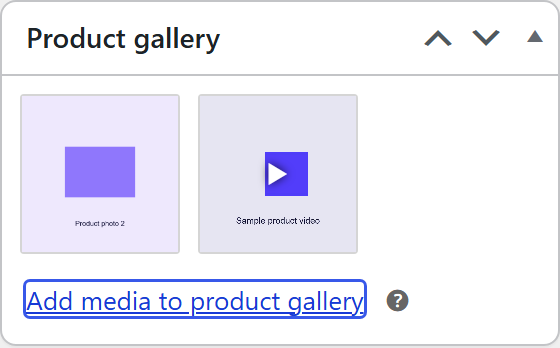
- In the Product gallery box on the right, click Add media to product gallery (with the feature on, this replaces the old "Add product gallery images" link).
- Upload your video file (or pick it from your Media Library) and click Add to gallery.
- Drag it into the order you want among your photos.
- Click Update.
Here's how it looked on our test store once a shopper clicked the video:

What it does well
- It's free and built in. Nothing extra to install, nothing to pay.
- Video sits with your photos, where shoppers already look. You can mix photos and a video and reorder them.
- It works with both classic and block themes.
- Only one video plays at a time. Switch to another photo and the video pauses.
The limits right now
- It's experimental. WooCommerce says it "may change in future releases." Fine to use; just check your product pages after updates.
- Uploads only. You can't paste a YouTube or Vimeo link. The video file has to be uploaded to your site.
- MP4 is the safe choice. Store owners have reported that WebM files don't work.
- Not as the main image, and not in variation galleries (the photos that change when someone picks a size or color).
- How it plays depends on your theme. On our test store (the free Storefront theme), the video played on its own, muted and looping, with no play/pause controls. Also on that store, a stray placeholder image showed up at the left edge of the product page once the video was added. Your theme may behave differently, which is one more reason to look at the page yourself.
- One reported bug: on the Twenty Twenty-Five theme with the block gallery, a video showed only its top-left corner instead of resizing. It's been reported to WooCommerce; whether it's fixed yet is unclear. After you add a video, check the product page on your phone and your computer.
- The video is served by your own hosting. Every play comes from your web host, so a big file can mean slower loading and more bandwidth. Keep the file as small as you reasonably can, and check your hosting plan's limits.
Is it enough for you?
It probably is if:
- you want one video per product, inside the gallery,
- your hosting handles video comfortably, and
- you don't need to know whether anyone watched it.
You might want more if:
- you'd rather not serve video from your own hosting,
- you want a button on the video itself, so someone who's convinced can add to cart without hunting for it,
- you want numbers: how many people watched, how far, and whether they clicked, or
- you want video in more places than the gallery: the homepage, a floating player, a swipeable feed.
Full disclosure: I'm building HoverReel, which does those things on WooCommerce: it hosts the video, puts an Add to Cart button (with size and color choices) on it, and shows you how many people watched, and how far. But if the free gallery video covers what you need, use it. More video on product pages is a win either way.
Got a question about video on your product pages? Send it to me. I read every one.