
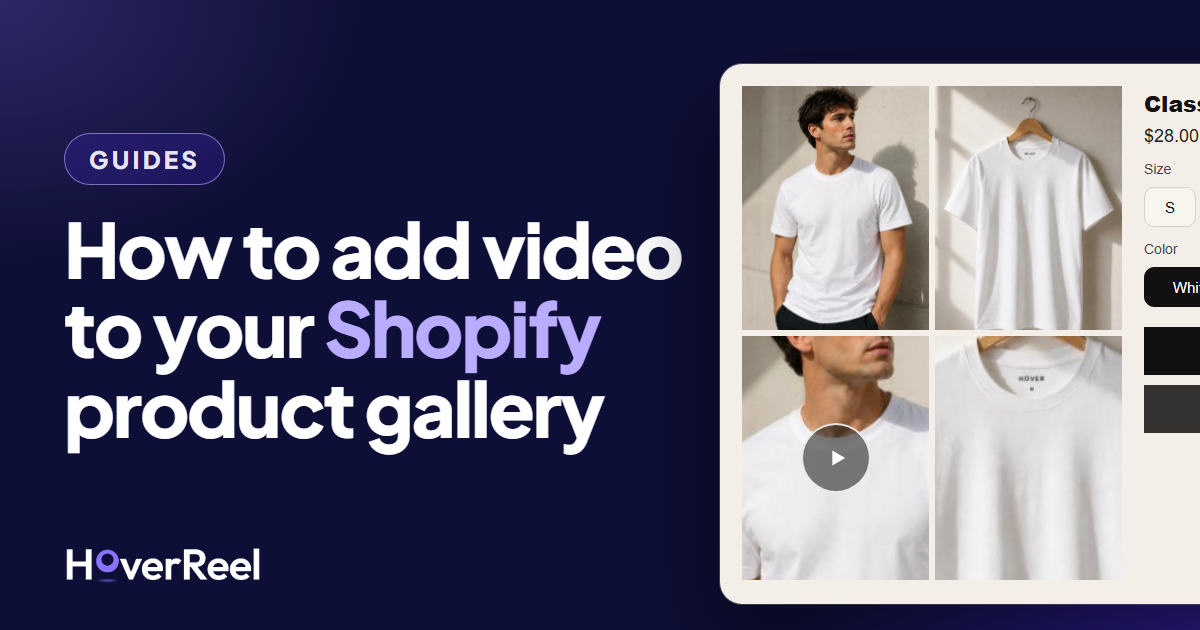
If you sell on Shopify, you may not need anything extra to get video on your product pages. Shopify has had video built into the product gallery for a while: you add it the same way you add photos, Shopify hosts it, and it plays right next to your pictures.
It's free and it's good. It also has a few limits that are easy to miss until you hit them. Here's how to add a video, what to watch for, and how to tell whether it's all you need.
How to add a video to a product
- In your Shopify admin, go to Products and open the product.
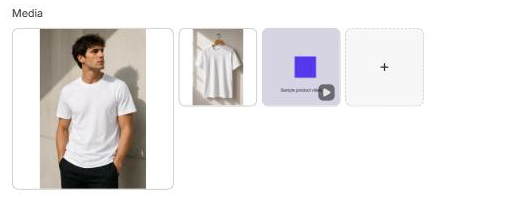
- In the Media section, click the + tile and choose your video file (or just drag the file onto the Media section).
- Wait a moment. The tile says Processing… while Shopify gets the video ready, then shows a frame from your video with a small play icon.
- Click Save.
- Drag it to where you want it among your photos, and save again.
- Click the video and choose Add alt text: a short description like "Model turning to show the back of the jacket." Screen readers use it to describe the video to people who can't see it.
On your phone: in the Shopify app, open the product, tap Media, then +. You can pick a video from your phone or record one with the Camera option right there.
Using a YouTube or Vimeo video instead? You can paste a link instead of uploading a file: look for Add from URL in the Media section (in the app: +, then YouTube or Vimeo URL). It doesn't use any of your Shopify video storage. The trade-off: it plays in YouTube's or Vimeo's player inside your gallery, so how it looks and behaves is partly up to them.
Where to put it in the gallery
Second is usually the sweet spot. Your first media item is the one Shopify uses on collection pages and at checkout, and on collection pages a video only shows as a still picture anyway (at least in Dawn). So lead with your best photo, and put the video right after it, where someone who's interested will find it.
How it plays depends on your theme
Shopify leaves playback to your theme. In Shopify's own free themes:
- Dawn shows the video as a thumbnail with a play button. It plays when someone clicks it, with the usual controls.
- Horizon, Shopify's newer free theme, shows the video as a still frame with a play button among your photos. Click it and it plays muted, with just a pause button.
- Both have a loop setting, and it's off by default. For a short video showing the product from every angle, looping often looks better. In Dawn it's Loop video in the product page's settings; in Horizon it's Video looping in the product media gallery block. You'll find both under Online Store → Themes → Customize, on your product page template.
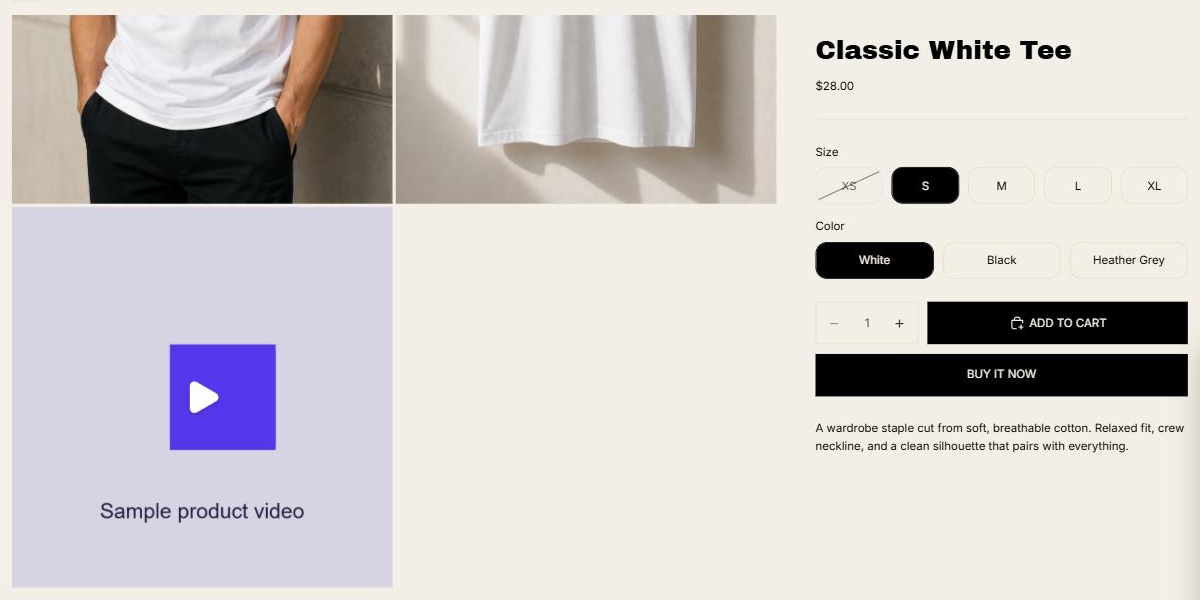
Using a different theme? Look for "video" in the product page's settings, then check the page itself on your phone and your computer.
The limits worth knowing
- 10 minutes and 1 GB per video. MP4, MOV and WEBM all work.
- A store-wide video limit. It's easy to miss: on Basic (and Starter), your whole store can hold 250 videos and 3D models combined. Grow raises that to 1,000, Advanced to 5,000. If you want a video on every product, count before you start.
- Not for variants. When someone picks a color, Shopify can swap in that variant's photo, but a variant's image can't be a video.
- Gallery only. The built-in video lives in the product gallery. Video on your homepage, a collection page or a landing page means your theme's video sections, which are a separate setup.
- No numbers. Shopify doesn't show you how many people played the video or how much of it they watched.
Is it enough for you?
It probably is if:
- you want a video on some of your products, inside the gallery,
- you're comfortably under your plan's video limit, and
- you don't need to know whether anyone watched.
You might want more if:
- you want the video to sell, with an Add to Cart button right on it, so someone who's convinced doesn't have to scroll back up and hunt for the button,
- you want numbers: how many people watched, how far they got, and whether they clicked,
- you want one video in several places: product pages, the homepage, a floating player in the corner, or
- you're close to your plan's video limit.
Full disclosure: I'm building HoverReel, which does those things on Shopify. It hosts the video (so it doesn't count toward Shopify's video limit), puts an Add to Cart button on it with your real size and color choices, updates the cart count in your header when someone adds (on Dawn, Horizon and Debut), and shows you how many people watched and how far they got. But if Shopify's built-in gallery video covers what you need, use it. More video on your product pages is a win either way.
Got a question about video on your product pages? Send it to me. I read every one.